
Working with Files is different from other scenarios. To upload or download a File, use api/files endpoint instead of the usual api/commands.
When uploading a File, Fibery does two things:
Saves the File to Storage and gets File’s fibery/secret.
Creates an Entity in the fibery/file Database with the fibery/secret from the previous step and gets fibery/id.
When working with Storage (ex. downloading a File) use fibery/secret. For actions inside Fibery (ex. attaching a File to an Entity) use fibery/id:
Parent Entity --- (fibery/id) ---> File Entity --- (fibery/secret) ---> File in Storage
fibery/file Database
Field name Field type Example fibery/idfibery/uuidc5bc1ec0-997e-11e9-bcec-8fb5f642f8a5 fibery/secretfibery/uuidc5815fb0-997e-11e9-bcec-8fb5f642f8a5 fibery/namefibery/text”vogon-ship.jpg” fibery/content-typefibery/text”image/jpeg”
Upload File
Upload a locally stored File and get:
fibery/id to attach the File to an Entity;
fibery/secret to download the File.
Upload an image from a Windows PC:
const fs = require ( 'node:fs' );
const file = new Blob (
[ fs . readFileSync ( 'C: \\ Users \\ Trillian \\ Pictures \\ virat-kohli.jpg' )],
{ type: 'image/jpeg' }
);
const formData = new FormData ();
formData . append ( 'file' , file , 'virat-kohli.jpg' );
const response = await fetch ( 'https://YOUR_ACCOUNT.fibery.io/api/files' , {
method: 'POST' ,
headers: { 'Authorization' : 'Token YOUR_TOKEN' },
body: formData
});
const data = await response . json ();
Result:
{
"fibery/id" : "c5bc1ec0-997e-11e9-bcec-8fb5f642f8a5" ,
"fibery/name" : "virat-kohli.jpg" ,
"fibery/content-type" : "image/jpeg" ,
"fibery/secret" : "c5815fb0-997e-11e9-bcec-8fb5f642f8a5" ,
"fibery/content-length" : 312456 ,
"fibery/rank" : 0
}
Upload File from the web
Upload a file from url and get:
fibery/id to attach the File to an Entity;
fibery/secret to download the File.
parameter optional? type Example urlrequired string”https://example.com/files/attachment.pdf ” nameoptional string”my file.pdf” methodoptional GET\POST\...”POST” , defaults to “GET” headersoptional {}{ “auth header”: “auth key for 3rd party system” }
Upload an image from pixabay:
const response = await fetch ( 'https://YOUR_ACCOUNT.fibery.io/api/files/from-url' , {
method: 'POST' ,
headers: {
'Authorization' : 'Token YOUR_TOKEN' ,
'Content-Type' : 'application/json'
},
body: JSON . stringify ({
url: 'https://cdn.pixabay.com/photo/2016/03/28/10/05/kitten-1285341_1280.jpg' ,
method: 'GET' ,
name: 'img.jpg' ,
headers: {
'auth header' : 'auth key for url specified'
}
})
});
const data = await response . json ();
Result:
{
"fibery/id" : "d5bc1ec0-997e-11e9-bcec-8fb5f642f8a5" ,
"fibery/name" : "img.jpg" ,
"fibery/content-type" : "image/jpeg" ,
"fibery/secret" : "f5815fb0-997e-11e9-bcec-8fb5f642f8a5" ,
"fibery/content-length" : 158948 ,
"fibery/rank" : 0
}
Download File
Download a File by providing fibery/secret.
const fs = require ( 'node:fs' );
const response = await fetch (
'https://YOUR_ACCOUNT.fibery.io/api/files/c5815fb0-997e-11e9-bcec-8fb5f642f8a5' ,
{ headers: { 'Authorization' : 'Token YOUR_TOKEN' } }
);
const buffer = Buffer . from ( await response . arrayBuffer ());
fs . writeFileSync ( './virat.jpg' , buffer );
Note: there is no place on UI where you can find any arbitrary file. You can download it by URL above (or preview by browser if file format allows it).
To view it file on UI one must place it in the Rich Text or Document or into Files extension for some Entity.
Get temporary public File Url
You can get a signed url which is valid for 60 minutes by calling /sign-urls
parameter optional? type Example secretsrequired string[][“c5815fb0-997e-11e9-bcec-8fb5f642f8a5”]
const response = await fetch ( 'https://YOUR_ACCOUNT.fibery.io/api/files/sign-urls' , {
method: 'POST' ,
headers: {
'Authorization' : 'Token YOUR_TOKEN' ,
'Content-Type' : 'application/json'
},
body: JSON . stringify ({
secrets: [ 'c5815fb0-997e-11e9-bcec-8fb5f642f8a5' ]
})
});
const data = await response . json ();
Result:
{
"items" : [
{
"secret" : "c5815fb0-997e-11e9-bcec-8fb5f642f8a5" ,
"url" : "https://...." ,
"expiresAt" : "2026-01-13T20:48:37.524Z"
}
]
}
Attach File to Entity
Before attaching a File, make sure that you have a Files field added for the Entity’s Database:
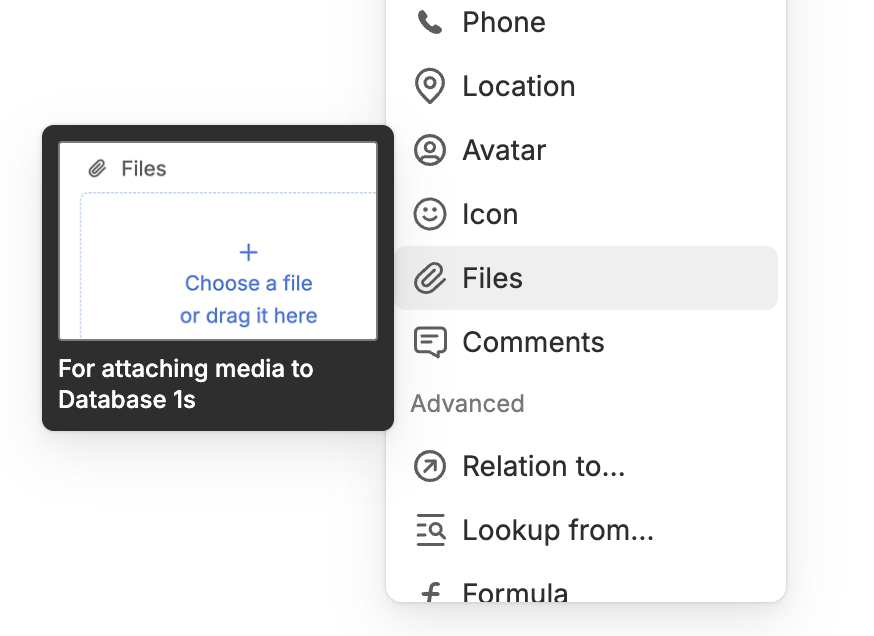
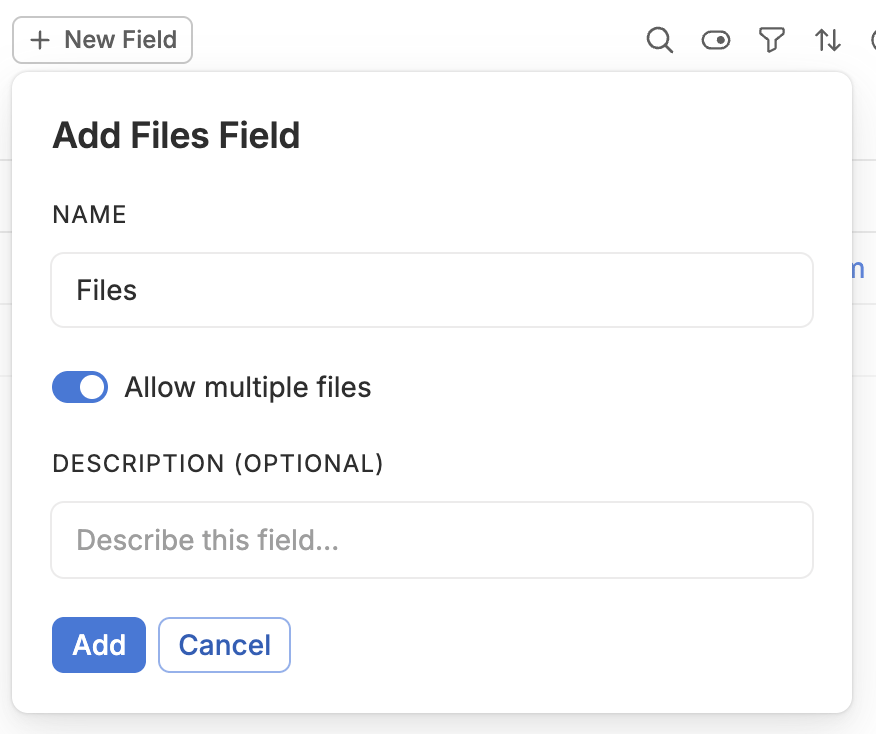
Suppose you’ve added a Files field like it shown on image above. It creates Files Field as an entity collection Field called <Your Space>/Files. Attach and remove Files the same way you update any other entity collection Field. In case you disable Allow multiple files option the field is created as a single file field. In examples bellow we’re considering that you’re working with files collection, please consult your Query entities guide to query single file field data.
Attach a picture to a Player’s profile:
const response = await fetch ( 'https://YOUR_ACCOUNT.fibery.io/api/commands' , {
method: 'POST' ,
headers: {
'Authorization' : 'Token YOUR_TOKEN' ,
'Content-Type' : 'application/json'
},
body: JSON . stringify ({
command: 'fibery.entity/add-collection-items' ,
args: {
type: 'Cricket/Player' ,
field: 'Cricket/Photos' ,
entity: { 'fibery/id' : '20f9b920-9752-11e9-81b9-4363f716f666' },
items: [
{ 'fibery/id' : 'c5bc1ec0-997e-11e9-bcec-8fb5f642f8a5' }
]
}
})
});
const data = await response . json ();
Response:
{
"success" : true ,
"result" : "ok"
}
Download attachments
To download Entity’s attached Files:
Get the Files fibery/secret;
Download each File using fibery/secret.
Get attached Files fibery/secret for a particular Player Entity:
const response = await fetch ( 'https://YOUR_ACCOUNT.fibery.io/api/commands' , {
method: 'POST' ,
headers: {
'Authorization' : 'Token YOUR_TOKEN' ,
'Content-Type' : 'application/json'
},
body: JSON . stringify ({
command: 'fibery.entity/query' ,
args: {
query: {
'q/from' : 'Cricket/Player' ,
'q/select' : [
'fibery/id' ,
{ 'Cricket/Photos' : {
'q/select' : [ 'fibery/secret' ],
'q/limit' : 100
}
}
],
'q/where' : [ '=' , [ 'fibery/id' ], '$entity-id' ],
'q/limit' : 1
},
params: { '$entity-id' : '20f9b920-9752-11e9-81b9-4363f716f666' }
}
})
});
const data = await response . json ();
Grab the secrets:
{
"success" : true ,
"result" : [
{
"fibery/id" : "20f9b920-9752-11e9-81b9-4363f716f666" ,
"Cricket/Photos" : [
{
"fibery/secret" : "a71a7f30-9991-11e9-b8d4-8aba22381101"
},
{
"fibery/secret" : "c5815fb0-997e-11e9-bcec-8fb5f642f8a5"
}
]
}
]
}
Download Files using these secrets:
const fs = require ( 'node:fs' );
const secrets = [
'a71a7f30-9991-11e9-b8d4-8aba22381101' ,
'c5815fb0-997e-11e9-bcec-8fb5f642f8a5'
];
await Promise . all ( secrets . map ( async ( secret ) => {
const response = await fetch (
`https://YOUR_ACCOUNT.fibery.io/api/files/ ${ secret } ` ,
{ headers: { 'Authorization' : 'Token YOUR_TOKEN' } }
);
const buffer = Buffer . from ( await response . arrayBuffer ());
fs . writeFileSync ( `./ ${ secret } .bin` , buffer );
}));
FAQ
How to Upload Images via API From External Sources
await fetch ( '/api/files/from-url' , {
method: "post" ,
headers: {
'Content-Type' : "application/json; charset=utf-8"
},
body: JSON . stringify ({ url: "file-url" , name: "file-name" , id: "optional UUID of file being created" }),
});